UP24: Setting Up Your New Band


Channel: Jawbone Support
Uploaded by Jawbone Support on 20140422
Categories: Science & Technology
Tags:
Welcome to Jawbone Customer Care! This video will walk you through setting up your new band. You will need your band, USB charging cable, your phone or iPad, and a computer. Thanks for watching and enjoy living UP!

Here is a detailed guide on how to set up your new Jawbone UP24 band, based on the video:

Items Needed: To begin the setup process, gather your band, its USB charging cable, a computer (or a standard USB wall adapter), and your phone or iPad [00:06].

Charging the Band:

Remove the cap from your band and store it in a safe place [00:23].

Connect the band to the USB charging cable and plug it into a powered computer or a USB wall adapter [00:27].

While charging, the sun symbol on the band will pulse [00:39]. Once fully charged, the pulsing stops and the symbol becomes solid [00:43].

Downloading and Installing the App:

While the band charges, go to the App Store on your phone or iPad and search for "UP by Jawbone" [00:51]. If you are using an iPad, make sure you are in the iPhone version of the App Store [00:56

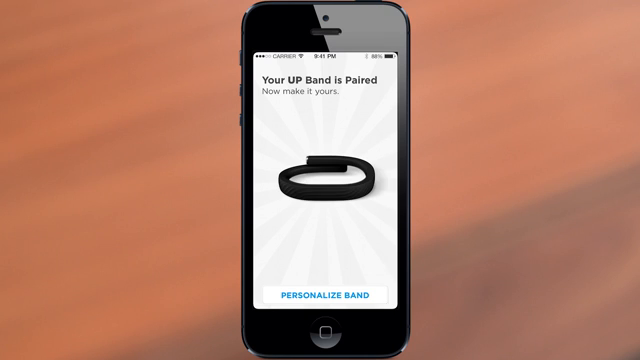
Image for chunk 1

].

Once the band is fully charged, remove it from the cable, put the cap back on, and gently slide it onto your wrist [01:09].

Pairing and Connecting:

Open the UP app on your device [01:20].

Existing users can tap Sign In, while new users should select Sign Up [01:27].

Select the UP24 band at the top of the screen [01:37].

Press the band button once to wake it up so the status lights flash [01:40].

The app will locate the band, and the UP24 will vibrate [01:47]. Press the band button once more to complete the pairing process [01:54].

Personalizing Your Profile:

Enter your name, give your band a custom name, and optionally add a profile photo by tapping the camera icon [02:04].

Enter your gender, height, weight, and birth date so the band can accurately track your movement [02:16].

Enter your email and creat

Image for chunk 2

e a new password to establish your Jawbone account [02:32].

Enabling Notifications and Permissions:

Read through the benefit screens and select enable on the notification screen (referred to as smart notifications for Android users) to stay motivated [02:45].

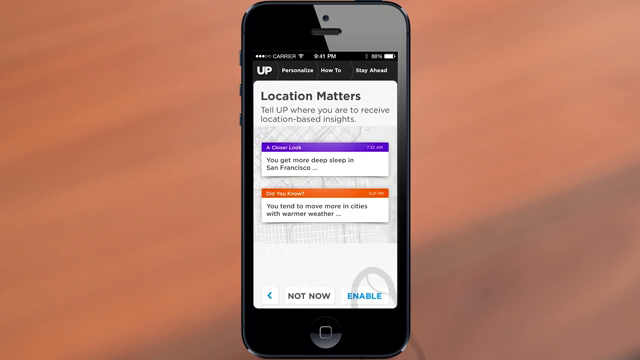
If using an iOS device, enable location services to receive location-based insights [03:00].

Home Screen Tutorial:

Review the home screen tutorial to learn how to access the left and right menus, track your mood, and log food [03:09].

Tap the screen once to exit the tutorial and reach your home screen [03:14], where you can access the left menu via the top-left icon [03:21] and the right menu via the top-right band icon [03:27].

Watch the video here: https://www.youtube.com/watch?v=vUs-kcfG7r4

UP24: Setting Up Your New Band

Jawbone Support ยท 339K views

Image for chunk 3

Viewer Discussion & Comments